


Please explain how to download SamacSys (ECAD model) and how to interpret the icons.
ID: FAQE10109E
update:
Answer
Our official website, in collaboration with SamacSys, allows you to download ECAD data such as circuit diagram symbols, PCB footprints, and 3D CAD models for target products free of charge.
Please use the green icon for “SamacSys 3D/ECAD” displayed on the product details page or in the model list of the parametric search.
When you download the service for the first time, or if you have not used it for an extended period, the SamacSys screen will appear after the consent screen regarding the handling of personal information is displayed.
Explanation
<Contents Links>
- Q1. What is SamacSys?
- Q2. Where can I access SamacSys ECAD models?
- Q3. How can I download SamacSys ECAD models?
- Q4. I don’t understand the meaning of the icons displayed on the product page or in the list.
- Q5. What should I do if SamacSys ECAD models are not displayed or cannot be downloaded?
- Q6. Are there any precautions to take when using SamacSys ECAD models or 3D CAD data?
Q1. What is SamacSys?
A. SamacSys is an external service that provides ECAD data necessary for circuit design, such as circuit diagram symbols, PCB footprints, and 3D CAD models. The official website of OMRON Device & Module Solutions Company, in collaboration with SamacSys, allows you to download ECAD models for target products free of charge and use them for design work in various ECAD tools. This makes it possible to reduce the time and effort required to create component libraries and improve the efficiency of design work.
Q2. Where can I access SamacSys's ECAD models?
A. You can access SamacSys's ECAD models on the following two pages:
① Product details page
You can download the data by clicking the “SamacSys 3D/ECAD” icon displayed in the product information area on each product's details page.
・Example of product details page: https://components.omron.com/kr-en/products/connectors/XF3M-XF2M
② Parametric search (model list page)
In the MODEL LIST that appears after performing a conditional search, you can download the data by clicking the “SamacSys 3D/ECAD” icon displayed in the row of each model.
・Example of parametric search: https://components.omron.com/kr-en/products/parametric-search/basic-switches
Q3. How can I download SamacSys ECAD models?
A. The basic operation flow for downloading is as follows:
| # | Procedure | Explanation | ||||||||
|---|---|---|---|---|---|---|---|---|---|---|
| 1 | Click the "SamacSys 3D/ECAD" icon on the product details page or the model list page (parametric search). |
(1) Icon placement on the product details page・Top right Initially, CAD data for a specific model will be displayed. Note: If there are many models, you may be redirected to ② MODEL LIST. 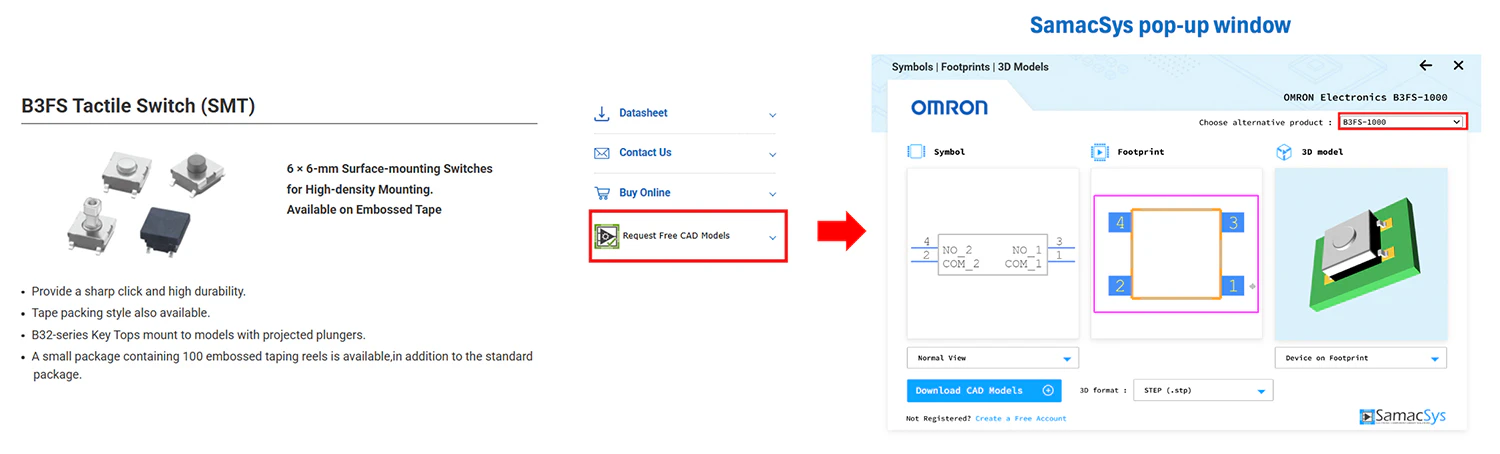
・MODEL LIST CAD data for the specific model you selected will be displayed. 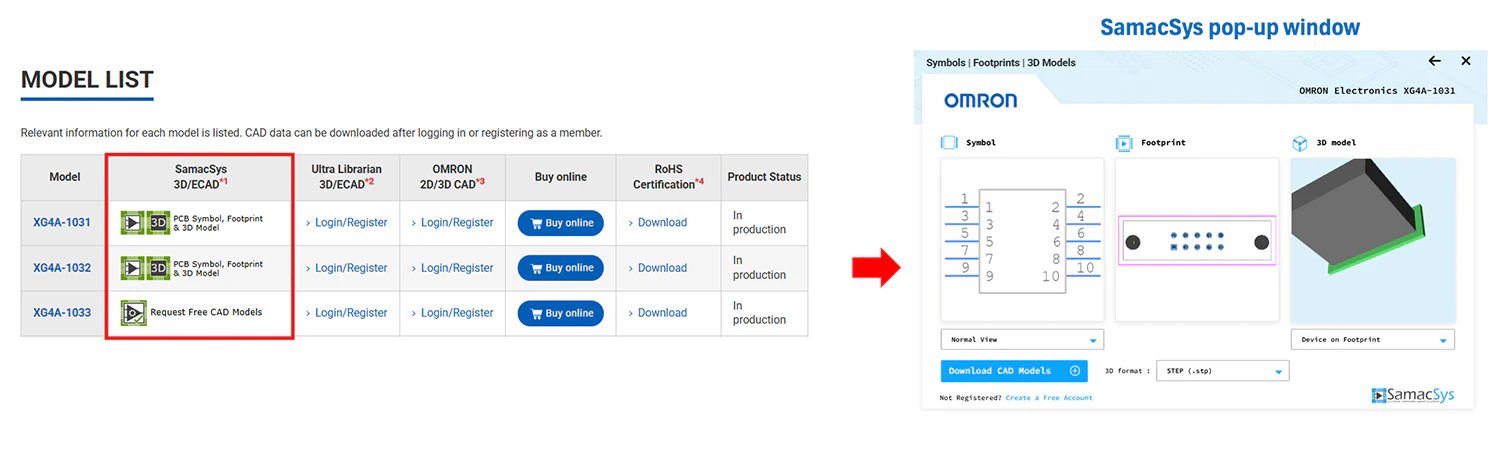
(2) Icon placement on the model list page (parametric search)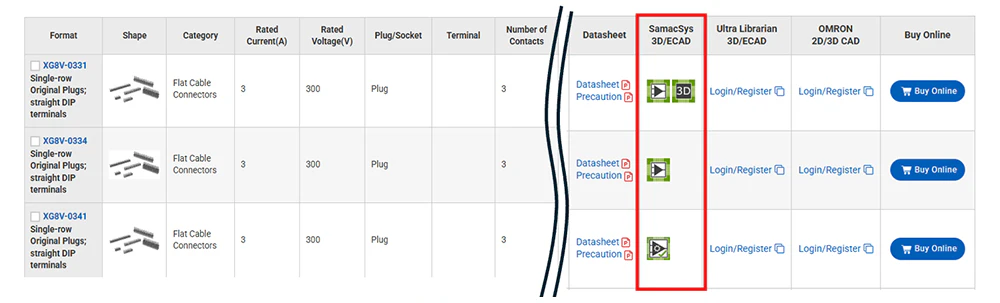
|
||||||||
| 2 |
When you download the app for the first time, or if you have not used it for an extended period, a pop-up window will appear asking for your consent regarding the handling of personal information. Once you have reviewed the contents and agreed to them, the SamacSys download screen will appear. Note: After scrolling to the bottom to review the contents and checking the two boxes (to indicate your agreement), you will be able to open the CAD download screen. |
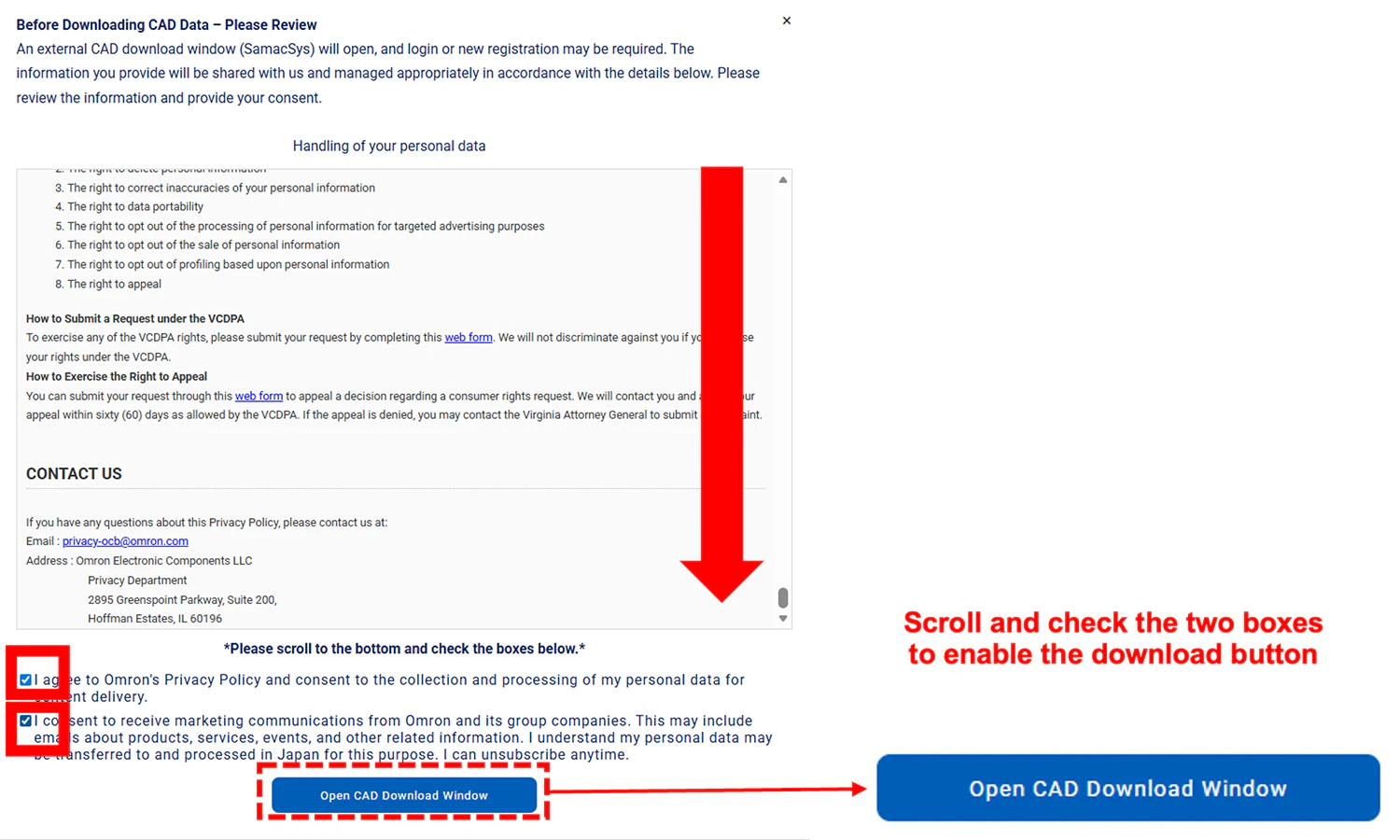
|
||||||||
| 3 | When using the app for the first time, register for a SamacSys account or log in. Please fill in the required information and complete your registration. | 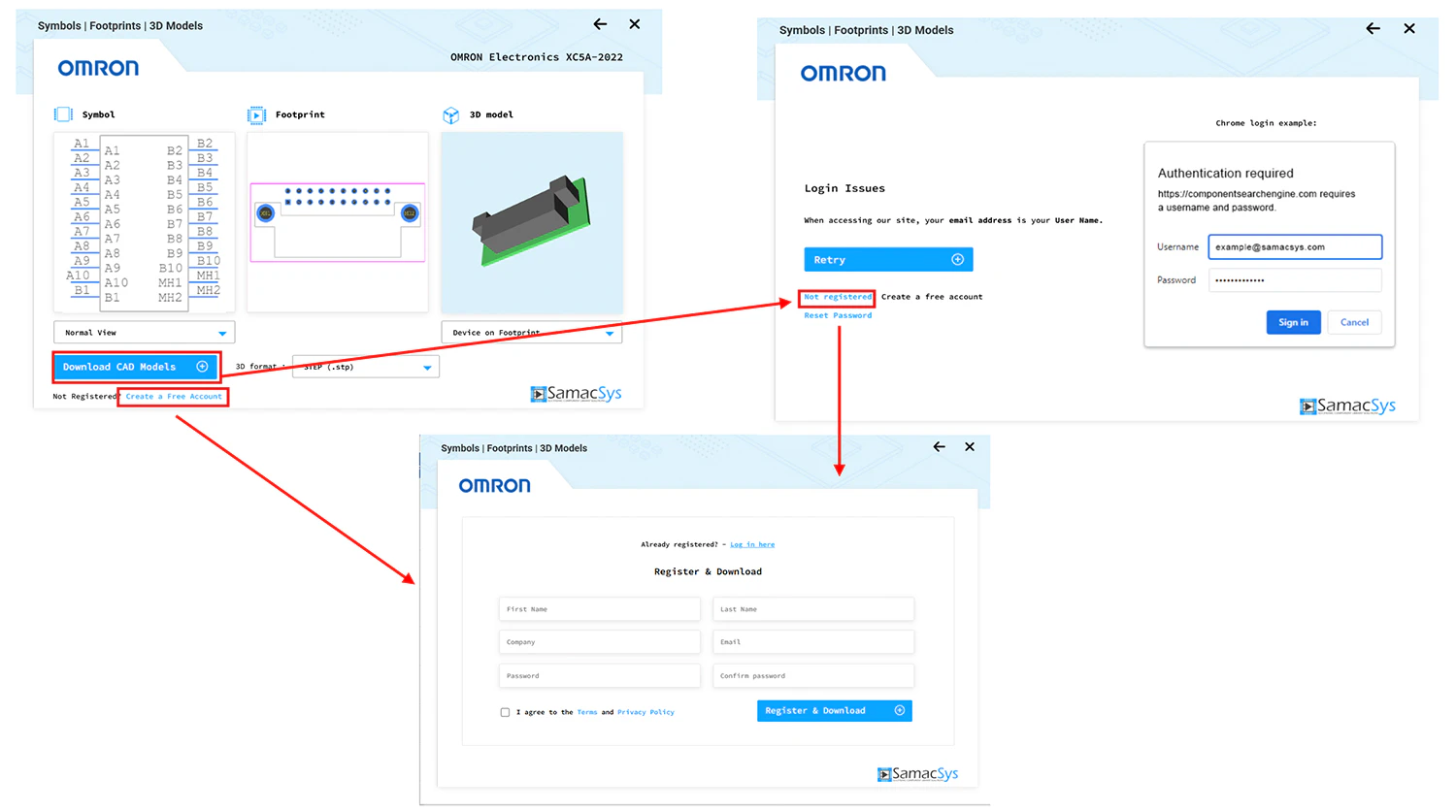
|
||||||||
| 4 |
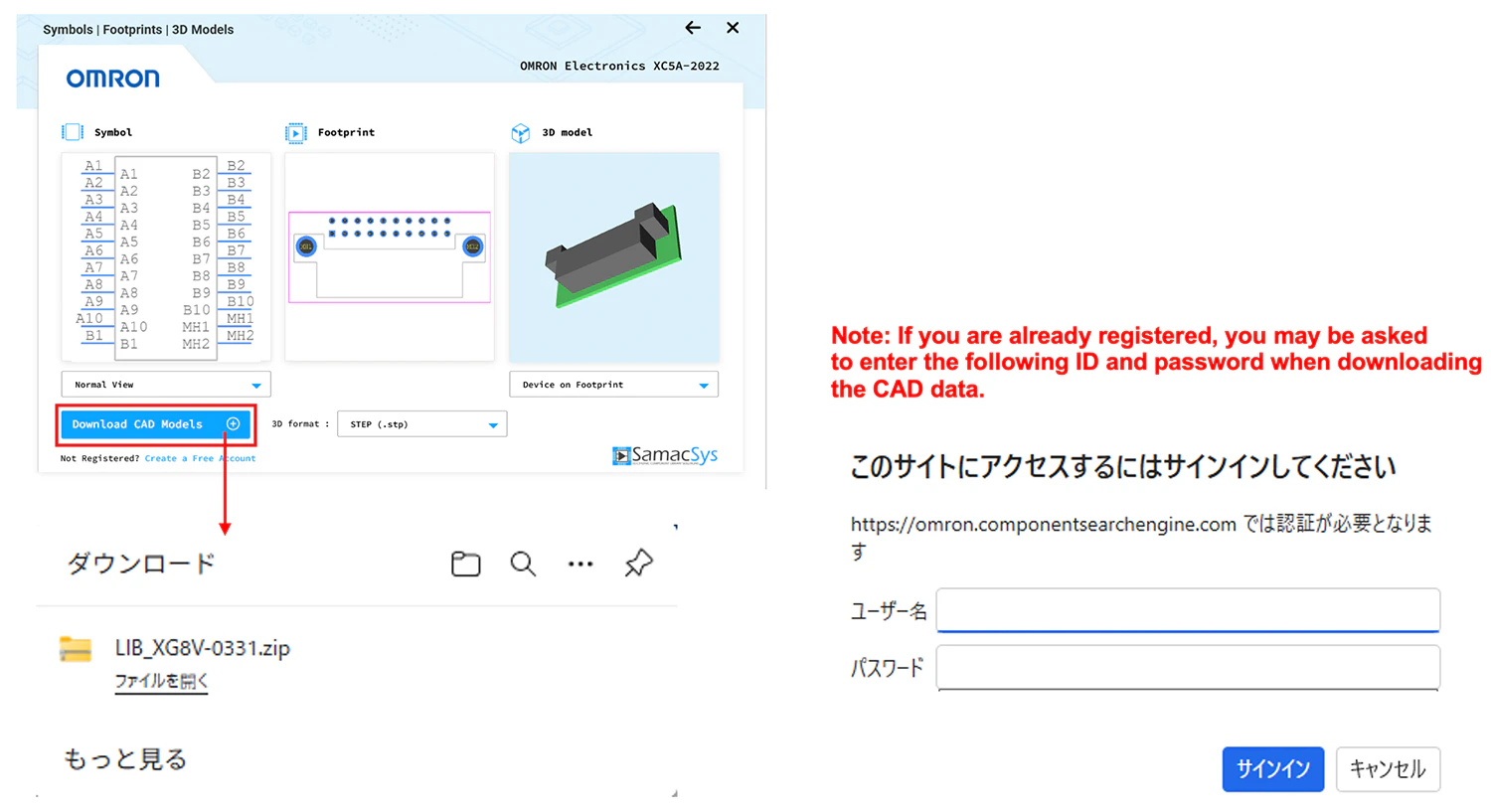
Download the displayed ECAD model. If you have already registered a SamacSys ID and password, you may be asked to enter your username and password. Enter your pre-registered ID and password to download the CAD data. Note: If the target CAD data is not available, submit your request using the request button. |
|
||||||||
| Note 1: | To integrate with ECAD tools, you may use the “Library Loader” provided by SamacSys. For detailed instructions on how to use Library Loader, please refer to SamacSys's official support documentation. |
| Note 2: | Please ensure you have ECAD tools (such as Altium, Cadence, or KiCad) ready in advance. |
| Note 3: | The product and service names listed herein are trademarks or registered trademarks of their respective companies. |
Q4. I don’t understand the meaning of the icons displayed on the product page or in the list.
A. The icons in SamacSys indicate the status of the available ECAD data.
| Icon status | Image | Content |
|---|---|---|
| Two icon display |  |
All data related to circuit diagram symbols, PCB footprints, and 3D models is available. |
| symbol icon display only |  |
Only circuit diagram symbol and PCB footprint data are available. Note: If you want to obtain 3D model data, please use the model request function in the SamacSys screen. |
| 3D icon display only |  |
Only 3D model data is available. Note: If you want to obtain circuit diagram symbol or PCB footprint data, please use the model request function in the SamacSys screen. |
| Request display |  |
No data has been registered yet. You can request the creation of various types of data. Note: This display may appear even if data has been registered, due to system constraints. |
Note: Clicking the icon above will allow you to check the available data for the target model.
Q5. What should I do if SamacSys ECAD models are not displayed or cannot be downloaded?
A. Possible reasons are as follows:
- The ECAD model for the target model has not yet been created.
- Login to SamacSys has not been completed.
- Consent regarding the handling of personal information has not been completed.
- Temporary network issues or browser settings may be causing this problem.
In this case, check a different model or use the model request function in the SamacSys screen.
Q6. Are there any precautions to take when using SamacSys ECAD models or 3D CAD data?
A. Yes. Please note the point below.
Disclaimer
The 3D CAD and ECAD data were independently created by SamacSys based on information provided by our company; therefore, we do not guarantee the accuracy, up-to-dateness, or completeness of the 3D CAD and ECAD data.
When using this data for design or manufacturing purposes, be sure to verify its contents in conjunction with the latest datasheets and specifications.
| Product category | Relays Power Relays |
|---|---|
| Classification | Standards, Exprt-related, Others |
| Related keywords |
|
Related Questions
-
Q
Please explain how to download Ultra Libralian (ECAD model) and how to interpret the icons.
- A
Our official website, in collaboration with Ultra Librarian, allows you to download ECAD data such as circuit diagram symbols, PCB footprints, and 3D CAD models for target products free of charge.
Before using this app, please log in or register as a member via the “Ultra Librarian 3D/ECAD” displayed in the MODEL LIST on the product details page or in the model list of the parametric search.
